Large worksheets can be difficult to navigate. This is especially true when there are multiple tabs and formulas. It does not help that Excel defaults cell names as A1 or Q17. That’s not very intuitive. So you’re now thinking that there has got to be a better way. And you would be correct.
So today I am going to take a page out of my book (shameless plug) on cell references and how to rename a cell.
Brown Bag Workshop’s Pocket Guide
Top Excel 2007 Skills You Need To Succeed
When you look at most formulas we create, such as =E2-H2 you will notice that it is not reader friendly.
Fortunately you can assign easy names to individual cells or even a range of cells. This makes it easier to understand calculations.
Think about which formula is easier to understand…
=ThisYearProfit – LastYearProfit or =E2 – H2.
To convert cell reference(s) into easy to read names start by selecting the cell you want to rename, in this example cell B1. Then mouse click on the cell name box and change B1 to TotalSales.
Now you can reference the cell B1 in formulas as TotalSales.
Example:
=(.08 * TotalSales) instead of =(.08 * B1).
There are some rules to be aware of when naming cells. For instance you cannot use a blank space between words. If you do you will receive an error.
To accommodate this, use a – or _ or just type the words together without spaces.
Total-Sales Total_Sales TotalSales.
You can also name a range of cells for future reference in calculations.
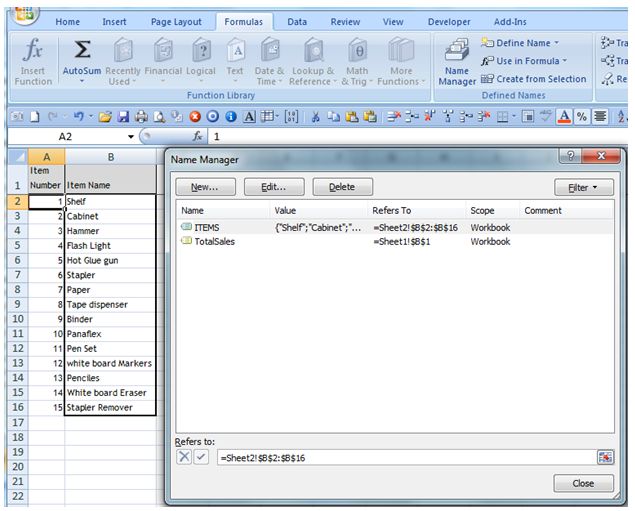
Just as before select the range of cells you want to name. In this example I have highlighted cells B2 through B16.
Next select the cell name box and type Items.
Now if you click on any one of the cells inside your named range, Excel will return the cell name. However, if you select the entire range, Excel will show Items in the cell name box.
You can also go to an assigned name range by pressing the F5 key.
If you want to delete a Name, go to Formulas then select Name Manager. This will pull up your defined names. Just select the name and then click on the Delete button.
So now you know. Try using Cell and Range names to make your worksheets Wow you clients.