Showing posts with label HLOOKUP. Show all posts

Lookup (array)


Today I want to address a shortcut of sorts. A substitute for VLookup using Vlookups cousin, Lookup. Now just because Lookup is missing the V in the front, doesn't make is any less useful.

Let's see how you can use the Lookup function (array) in place of VLookup. In this example the Lookup formula in cell D3 returns the corresponding item number that is entered in cell E1. Now VLookup can do the same function but requires additional components to make the function work. So Lookup can be easier to use.


A
B
C
D
E
1
Item
Color


15003
2
51671
Hammer


3
15003
Saw

Result
Function
4
31536
Ladder

Saw
=LOOKUP(E1,A1:B6)
5
53342
Level


6
21367
Pry Bar

Saw
=VLOOKUP(E1,A1:B6,2,FALSE)

Syntax
Lookup value, array

Lookup Value – A value that Lookup searches for in an Array. It can be a number, text, logical value or a name or reference. In the above example my lookup value is 15003.

Array – A range of cells that contain text, number, or logical values that you want to compare with Lookup_value. In the above example my array is Cells A1 – B6.

Basically all you need to know is what you want to find and where you want to find it in. Lookup will find the value and return the corresponding value in the last column in your array.

The array form of LOOKUP is similar to the HLOOKUP and VLOOKUP functions. The difference is that HLOOKUP searches for lookup_value in the first row, VLOOKUP searches in the first column, and LOOKUP searches according to the dimensions of array

If an array covers an area that is wider than it is tall (more columns than rows), LOOKUP searches for lookup_value in the first row. 

If array is square or is taller than it is wide (more rows than columns), LOOKUP searches in the first column. 

With HLOOKUP and VLOOKUP, you can index down or across, but LOOKUP always selects the last value in the row or column.

BEGINNER, LOOKUP, VLOOKUP, HLOOKUP

HLookup - The overlooked cousin

Today I want to look at =Vlookup’s often overlooked cousin =HLookup (Vertical lookup to Horizontal Lookup).

They both accomplish a similar task. =Vlookup allows you to search for a value in a column and return a value in a column to the right of where your search value is stored.

=Hlookup allows you to search for a value in a top row of a table and return a value in a row below of where your search value is stored. 

You would use =Hlookup when your value is located in a row across the top of a table of data, and you want to look down a specified number of rows. You would use =VLOOKUP when your value is located in a column to the left of the data you want to find.

Confused? Don’t be.

Both have a similar formula structure.

Hlookup(Lookup Value, Table array, Row index num, Range Lookup)
Vlookup(Lookup Value, Table array, Col index num, Range Lookup)

Lookup Value - The value you want to find. If its text place a " around the text.
Table Array - The columns and rows where you want to search for your value and return value.
Col  / Row Index Num - The column or row of the value you want to return.
Range lookup - True or False, not required but specifies whether you want your lookup to find an exact match or an approximate match. If TRUE or omitted, an approximate match is returned. In other words, if an exact match is not found, the next largest value that is less than lookup_value is returned. If FALSE, HLOOKUP will find an exact match. If one is not found, the error value #N/A is returned.

Here is some sample data.

A
B
C
D
E
F
G
H
1
AA
BB
CC
DD
EE
FF
GG
HH
2
1
2
3
4
5
6
7
8
3
9
10
11
12
13
14
15
16

Here I have columns A through H with data in rows 2 and 3. My header row has duplicated letters (AA, BB, CC. etc.)

Let’s use =HLookup to bring back the value of 5 in column E.

=HLOOKUP("EE",1:2,2,FALSE)

So what does this formula do???

It asks Excel to find the value EE in the designated row array (rows 1 & 2), then return the value in row 2.
If I wanted to return the value in row 3 (13) in column E, my formula would be…

=HLOOKUP("EE",1:3,3,FALSE)

Now it is important to point out that the Array 1:3 indicates the rows I select for my formula. If my header row starts in row 5 and my data is in rows 6-7, then my formula would change.

=HLOOKUP("EE",1:2,3,FALSE) to =HLOOKUP("EE",5:7,3,FALSE)

Of course I can reference a cell instead of a hard coded value such as “EE”. In this example I want to look for the value in cell G18 and return the value un row 3 of my array.

=HLOOKUP(G18,1:3,3,FALSE) to =HLOOKUP("EE",5:7,3,FALSE)

Wildcards
If range_lookup is FALSE and lookup_value is text, you can use the wildcard characters - (?) and asterisk (*).
A question mark matches any single character (as shown in cell F8 in my example).
 If you have 6 question marks, then you are trying to return a field with 6 characters in length.
An asterisk matches any sequence of characters.
 If you want to find an actual question mark or asterisk, type a tilde (~) preceding the character

Now I almost never use =HLookup in my daily Excel use, but do rely heavily on =VLookup. How do you use =HLookup in your daily work?

VLOOKUP


Vlookup is one of the most useful functions available in Excel.

There are times that you will need to pull in data from different sections or tabs of a workbook (or even different workbooks).

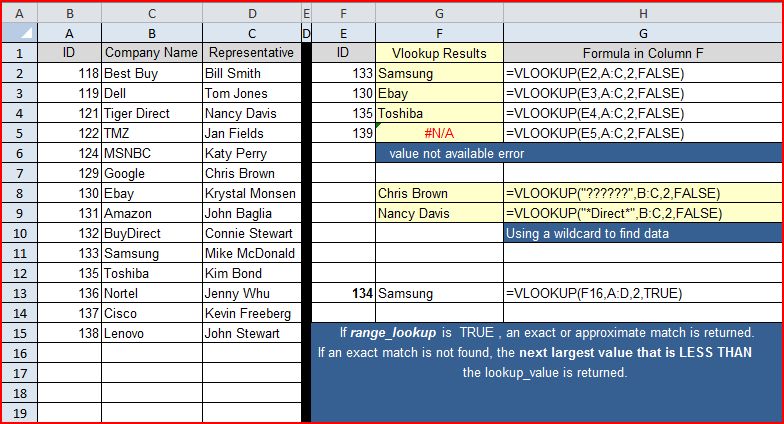
Let’s say that you want to identify the Company Name for each of our Items in our sample workbook. VLookup will search for a value you provide in the left most column of a range of data and return the value in the same row based on an index number that represents the column where the data resides that you want to return. Confused???

Simply put, VLOOKUP allows you to search for an item and pull back related information to that item.
Take a look at our sample data. Columns A B and C has data about vendors. For my example I have also entered in the ID of some vendors in column E. I want to use VLOOKUP to return the Company name for each ID in column E.  I have entered in my VLOOKUP formula in column F. To see the formula, I have also typed the exact formula that I used in column F in Column G.

You will notice that in cell F5 I have a “value not available error”. This is because in cell E13 I have the value 134. That value is not included in my lookup range. (This can be corrected by using the IFERROR(VLOOKUP combination.)

If you compare one of my calculations in my sample workbook, you can see how each component works.
=VLOOKUP(E2,A:C,2,FALSE)

VLookup( value, table_array, index_number, not_exact_match )

Value: The value I want to search for (133).                                                                    

table_array: Is a selection of data that is at least two columns wide that is sorted in ascending order by the first column in the array (Columns A B and C).                                                                  

index_number: The column # in table_array where the data you want returned is stored in. Regardless of where you start your table_array, the first column is number 1. (2 – Return Column B)                         

Not_exact_match: True or False option. Enter False to return an exact match. Enter TRUE to find an approximate match. If no exact match is found, True will look for the next largest value that is less than value 

(False – find an exact match).

Wildcards
If range_lookup is FALSE and lookup_value is text, you can use the wildcard characters - (?) and asterisk (*).
A question mark matches any single character (as shown in cell F8 in my example).
 If you have 6 question marks, then you are trying to return a field with 6 characters in length.
An asterisk matches any sequence of characters.
 If you want to find an actual question mark or asterisk, type a tilde (~) preceding the character.

VLOOKUP also has a cousin called HLOOKUP but that’s a topic for another time.

How have you used VLOOKUP to solve a problem?